When Stocky stops being your planning workflow, reorder planning becomes a job you have to place somewhere else. Reorder planning is the work of deciding what to reorder, when to reorder it, and how much to buy. It is a separate question from supplier reliability and from purchase order execution, and treating the three as one thing is what makes the move off Stocky feel harder than it is. The honest answer is that no single tool does all of it the way Stocky did. The practical path is to run purchase orders and counts in the Shopify admin and Shopify POS, keep the what, when, and how much in a planning layer such as a spreadsheet, and check what is actually moving before you buy more. This guide frames that decision so you can settle it deliberately before the cutoff.
- Current inventory Read on-hand counts from the Shopify admin.
- Recent sales The pace the product is actually selling at.
- Days of cover How long current stock lasts at that pace.
- Supplier lead time Order while stock still covers the delivery window.
- Buying decision Weigh what to buy, when, and how much.
Then:
- Add to the buy list
- Hold and watch
What changes when Stocky is no longer your planning workflow
The first thing to pin down is the deadline, because it sets the order of everything else. Stocky will not be available after August 31, 2026, and from that date you manage inventory in the Shopify admin and Shopify POS instead. Two details shape the planning side of the move. Historical Stocky data, including old purchase orders and stocktakes, will not move into Shopify automatically, so anything you want to plan from later has to be exported while Stocky still runs. And Shopify notes that some Stocky-specific features might work differently or might not yet be available in Shopify, so a feature-for-feature swap is not a safe assumption. For the full calendar of dates, see the Stocky shutdown timeline, and for the wider question of which tools to move to, see what to use after Stocky.
The three reorder questions: what, when, and how much
Reorder planning answers three questions, and they are easier to handle when you keep them apart. What to reorder is a question about which products are worth restocking, which means separating the items that keep selling from the ones sitting still. When to reorder is a timing question: every product has a point where the stock on hand will run out before a new order can arrive, and that point depends on how fast it sells and how long the supplier takes. How much to reorder is a quantity question that balances the cost of holding stock against the risk of selling out. None of these is a report the Shopify admin produces for you. They are decisions you make from the data, which is why reorder planning sits on top of Shopify rather than inside it. Because those decisions recur, the practical way to keep them current is a fixed review cadence, which is what a weekly reorder list for Shopify provides. For the running view of how long current stock will last, see days of inventory remaining.
What the Shopify admin and POS cover natively
Start with what you already pay for, because the admin covers more of the execution layer than people expect. In Shopify, a purchase order records the products, their costs, and the quantities ordered from a supplier, and it tracks incoming inventory quantities, costs, payment terms, and an estimated arrival date. Suppliers are created in the admin at the point you build a purchase order. For the counts that planning depends on, Shopify inventory CSV files can export current quantities and update quantities for products in each location, and the On hand column is what you use to set the units physically present at a location. Between purchase orders, supplier records, CSV exports, and counts done in Shopify POS, the admin holds the order history and the stock numbers your planning reads from. The workflow for keeping stock topped up is covered in inventory replenishment after Stocky.
What still needs a planning layer
What the admin does not do is tell you what to reorder, when, or how much. It records a purchase order once you decide to place one, but it does not flag which products are approaching their reorder point or roll many orders together into a buying plan. A couple of native limits make this concrete. Purchase order APIs are not currently available in Shopify and are under consideration, so you cannot fully automate purchase order creation from an outside system today. And while you can download a purchase order as a PDF from the admin, you cannot email it to a supplier directly from the admin, so sending it stays a manual step. For a fuller look at what native Shopify purchase orders cover after Stocky and where the gaps are, see Shopify purchase orders after Stocky. The planning layer is where the what, when, and how much actually live. For most stores that layer starts as a spreadsheet built from exported counts and order history, and it stays a spreadsheet until the manual upkeep outweighs the cost of a focused tool. The output of that layer each cycle is a short list of what to buy, sized and reasoned, which you review as a buy list after Stocky before any purchase order is created. Deciding whether a given restock is a reorder or a transfer between your own locations belongs here too; see reorder versus transfer.
Low stock and dead stock belong in the same check
Before you act on a reorder list, run one check that saves money: separate low stock from dead stock. Low stock is a product selling steadily that is heading toward its reorder point, and it is the thing you want to catch in time. Dead stock is a product that is not moving, and the worst reorder mistakes happen when a low quantity on a dead item looks like a reason to buy more. The fix is to read quantity next to movement, not on its own. A small number on a fast seller is urgent, while a small number on something that has not sold in weeks is usually a signal to stop ordering it, not to restock. Looking at both sides in the same pass keeps your buying pointed at the products that actually turn over, and it stops working capital from piling up in stock that will not sell.
Supplier lead time as a reorder input
Supplier lead time is the quietest input in reorder planning and the one that breaks plans most often. The reorder point for any product is really a question about lead time: you have to reorder while the stock on hand still covers the days it takes the supplier to deliver. Working out that point for each product, and the inputs behind it, is its own task; see Shopify reorder points after Stocky. When a supplier runs late, a reorder point that looked safe turns into a stockout, because the buffer was sized for a delivery window the supplier did not hit. That is why reliability belongs in the plan, not just in your memory of which suppliers tend to slip. Tracking on-time delivery and typical lead time per supplier turns a vague sense of risk into a number you can build a buffer around. The admin records the purchase orders that hold this history, but it does not score suppliers for you, so the scoring is one more job that sits in the planning layer. Checking supplier lead time before each buy is the step that turns this input into action.
Where a dedicated reorder planner fits
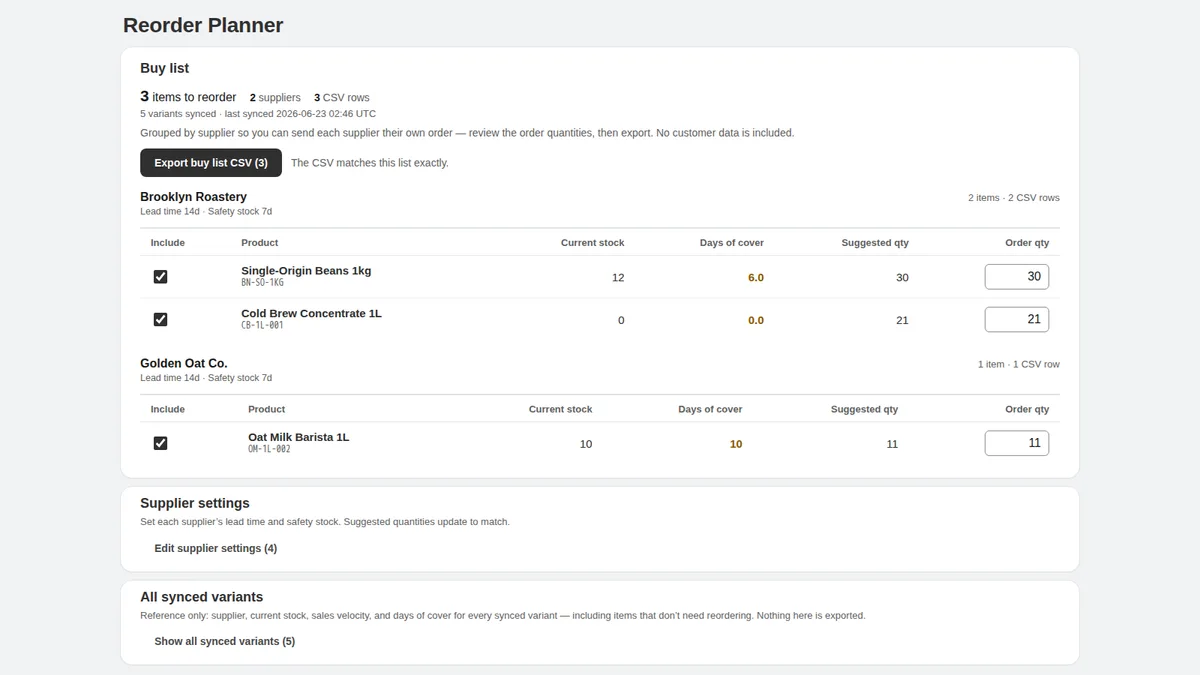
If the planning layer becomes too much to keep in a spreadsheet, a focused tool is one way to hold it, and a dedicated reorder planner now exists for exactly this gap. Kijun Reorder Planner is aimed at the reorder-list step: it builds supplier buy lists from recent sales and stock, groups reorder items by supplier, and lets you adjust quantities before exporting — you can save buy lists for later, and export CSV/PDF buy lists when the numbers look right. It is worth being clear about what it is not. It is read-only by design: it does not create Shopify purchase orders, which stay native to Shopify, it does not write inventory changes back, it does not use customer names, emails, phone numbers, addresses, or payment data, and it does not forecast demand. Kijun Reorder Planner is available on the Shopify App Store, and nothing in this guide depends on it — a spreadsheet you control still works if you prefer to start there.
What to do before August 31, 2026
The planning layer you build all depends on data that is far easier to pull while Stocky still runs, so the order of operations matters. Export the counts, purchase orders, and any history you want to plan from before the cutoff, because that data will not move into Shopify on its own afterward, and suppliers in particular cannot be exported from Stocky. Rebuild your active purchase order process in the Shopify admin so the team knows where ordering now happens. Then set your reorder points and a simple way to track what is moving, even if that starts as a single spreadsheet. For the step-by-step of the move itself, the Stocky migration checklist covers the sequence to follow. Put the export and supplier-capture steps on the calendar now, because read-only export access runs only for a limited period after the cutoff and the app stops being usable for day-to-day work on that date.
Limitations
This guide is a way to frame reorder planning, not a guarantee about results, and it is not meant to cover every workflow Stocky used to support. Reorder points and buying quantities are judgement calls you make from your own numbers, so treat any list as a starting point a person reviews, not an instruction to follow blindly. Purchase order creation stays native to Shopify, and none of this is demand forecasting. If a focused tool fits how you work, the reorder planner described above is one option for the planning layer. Try Kijun Reorder Planner.
This article was drafted with AI assistance and checked against cited sources through kijun’s editorial workflow. Last updated: 2026-07-03.
Stocky and Shopify are trademarks of Shopify Inc. kijun is not affiliated with or endorsed by Shopify.