A supplier-ready buy list is the step between a reorder list and a Shopify purchase order. It takes the short list of what you have decided to buy and organizes it the way you will actually order: grouped by the supplier or vendor each item comes from, with the lead time, minimums, and a quantity settled for every row. It is not a native Shopify feature. It is a planning artifact you keep yourself, built from the counts and order history Shopify already holds. The job is to make each row safe to turn into an order, answering which supplier it belongs to, how much to buy, when that supplier needs to hear from you, and what should wait. Stocky will not be available after August 31, 2026, and from that date you manage inventory in the Shopify admin and Shopify POS, so a supplier-ready list is one way to keep ordering organized once the old workflow is gone. Here is what to check before you create purchase orders.
What makes a buy list supplier-ready
A reorder list answers what to buy. A supplier-ready buy list answers who you buy it from and on what terms, so each row is ready to become a purchase order without more digging. The difference is organization: the same items, regrouped by supplier and annotated with the details an order needs. After the cutover the admin holds your order records and your stock numbers, because inventory tasks such as transfers, purchase orders, inventory quantity adjustments, and historical inventory reporting are handled in the Shopify admin. What it does not produce is the per-supplier view of what to order this round, so that view is the work. Treat the supplier-ready list as the bridge between the buy list after Stocky and the orders you place, and as the point where a weekly reorder list becomes specific to each vendor.
Group items by supplier or vendor before reviewing quantities
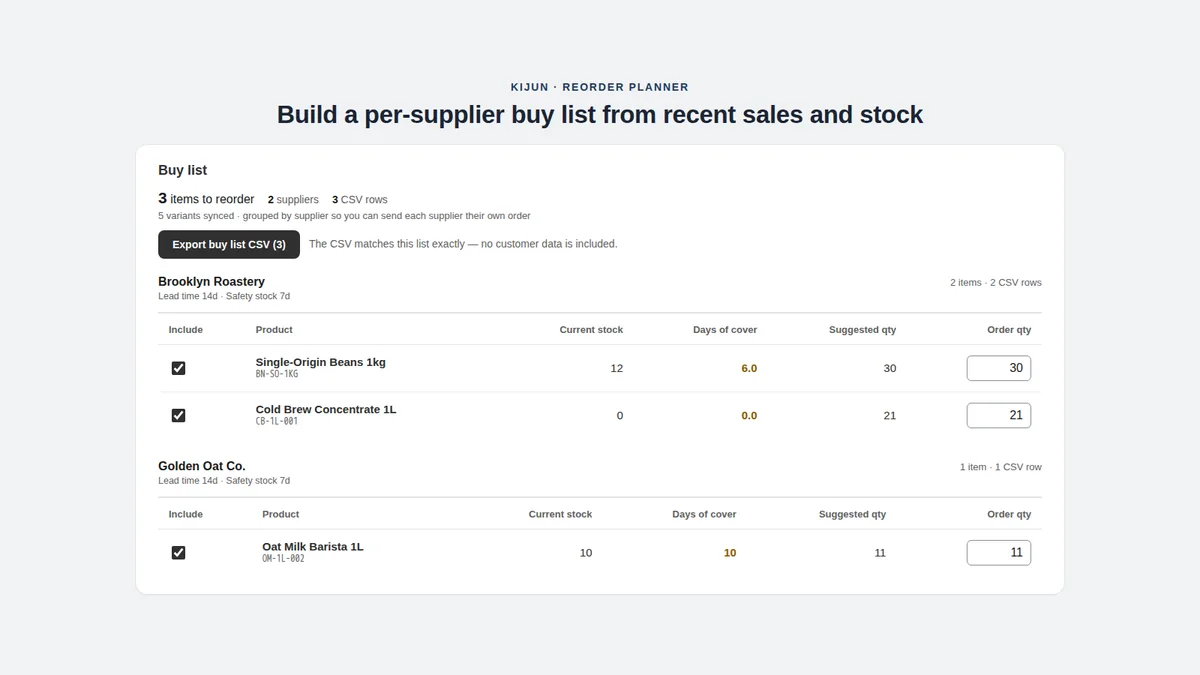
The first move is to regroup the list by who supplies each item. Most buy lists start ordered by product or by urgency, but you order by supplier, so a list grouped by supplier is the one you can act on. In Shopify, suppliers are created in the admin when you create a purchase order, and grouping your list by the supplier or vendor each item comes from gathers that supplier’s items together. Pulling all of one supplier’s items into a single block lets you see the whole order at once: the combined quantity, whether it clears the supplier minimum, and whether two small rows are better sent as one. It also stops the same supplier from getting two separate orders in the same week. Group first, then size quantities, because the quantity for one item often depends on what else you are ordering from the same supplier.
Check lead time before deciding when to order
Supplier lead time decides when each block needs to leave, not just how much. Lead time is the gap between placing an order and receiving it, and it is a per-supplier number rather than one figure for the whole list. Read it against how long current stock lasts: Shopify inventory CSV files can export current inventory quantities and update quantities for products in each location, and the recent sales pace turns that on-hand figure into a rough days-of-cover horizon. Days of inventory remaining is an estimate of how long your inventory will last based on average sales rates, calculated as the ending quantity divided by the average quantity sold per day. When days of cover is shorter than a supplier’s lead time, that block is already late and belongs at the top. The order you eventually open carries the timing too, since Shopify purchase orders track incoming inventory quantities, costs, payment terms, and an estimated arrival date, but the decision of when to contact the supplier is yours and happens on this list first. For how that per-item timing is set before it reaches the list, see supplier lead time in reorder planning.
Separate urgent buys from planned replenishment
Not every row on a supplier-ready list is urgent, and treating them the same wastes both cash and attention. Split the list into two: items where days of cover is shorter than the lead time, which need an order now, and items you are restocking ahead of need, which can ride along on the next planned order to that supplier. Shopify’s inventory reports summarize past sales and current stock to help you decide which products to prioritize when restocking, and they are not automatic reorder recommendations and do not calculate reorder quantities, so the split is a judgement you make from the numbers. Working out the action line for each product, the reorder point, is its own task; see Shopify reorder points after Stocky. Keeping urgent and planned apart means an urgent shortage from one supplier does not get buried under routine restocking from another.
Check minimums, pack sizes, and supplier notes
Before a block becomes an order, check the constraints that only the supplier sets. Minimum order values or quantities can mean you either add a row to reach the minimum or wait until more items justify the order. Pack sizes and case quantities round your numbers, since you order in the units the supplier ships, not the exact figure your sales pace suggested. And supplier-specific notes belong on the row: a known slow shipper, a price break at a higher quantity, a preferred order day. What to do about a known slow shipper before the next round is late supplier purchase orders. None of this is a calculation Shopify runs for you. It is context you keep next to each supplier, and it is the same supplier history you would weigh when you track supplier performance after Stocky. Settling it here means the purchase order you open next only records a decision you have already made.
Use purchase orders after the buy list is reviewed
The purchase order comes last, once the supplier-ready list has done its job. A Shopify purchase order records the products, their costs, and the quantities ordered from a supplier, so it captures the decision you already made, supplier by supplier. Opening one per supplier block is quick when the list already holds the vendor, the quantity, and the reason, because the order screen is only writing down a settled choice rather than asking you to decide inside it. For a fuller map of what the native order covers and where the gaps are, see Shopify purchase orders after Stocky, and for how the wider plan feeds this step, see reorder planning after Stocky. The supplier-ready list and the purchase order stay separate jobs: one is where you decide, the other is where you record, which is also the CSV vs PDF purchase orders split between a flexible working list and a downloadable order.
What to leave out of a supplier-ready buy list
A supplier-ready list is only useful if it stays short, so leave off anything that is not an order this round. Drop items with comfortable days of cover, since adding them only ties up cash with a supplier you do not need to contact yet. Drop dead and slow movers, where the supplier-ready question is whether to stop ordering rather than how much to reorder; the running workflow for spotting those is inventory replenishment after Stocky. And leave off anything you can cover by moving stock you already own between locations, which is a transfer rather than a new supplier order. Pulling these off keeps each supplier block honest, so the orders you place are the ones that earn their cash.
Supplier-ready buy list checklist
Before you turn the list into purchase orders, run each supplier block through the same short review. First, the supplier or vendor, so every row is grouped with the right one. Second, current on-hand stock, read from the admin export rather than memory, since the On hand column in the Shopify inventory CSV is used to set or update the units physically present at a location. Third, days of cover against that supplier’s lead time, to set the order’s urgency. Fourth, the combined quantity, checked against the supplier minimum and pack size. Fifth, a dead-or-slow check, so you are not restocking something that is not selling. Sixth, a one-line reason per block, so the order is defensible later. One timing note frames the habit: historical Stocky data, including old purchase orders and stocktakes, will not move into Shopify automatically after the shutdown, so export the counts and order history you plan from before the cutoff. The what to use after Stocky guide frames the wider tooling choice.
Limitations
A supplier-ready buy list is a planning method, not a Shopify feature, and this guide does not cover every workflow Stocky used to support. The list does not create Shopify purchase orders; those stay native to the Shopify admin, and the list only organizes the decision behind them. None of this is demand forecasting, and the lead times, minimums, and quantities you settle on are judgement calls a person reviews, not numbers to follow blindly. It does not promise that you avoid every stockout or clear every piece of dead stock. Supplier records and order history still need source-backed checks against your own store. For the buy-list step itself, Kijun Reorder Planner is one option, scoped honestly: it builds supplier buy lists from recent sales and stock, groups reorder items by supplier, and lets you adjust quantities before exporting — you can save buy lists for later, and export CSV/PDF buy lists when the numbers look right. It is read-only by design: no inventory write-back, no native Shopify purchase order creation, and no use of customer names, emails, phone numbers, addresses, or payment data. Kijun Reorder Planner is available on the Shopify App Store. Try Kijun Reorder Planner.
This article was drafted with AI assistance and checked against cited sources through kijun’s editorial workflow. Last updated: 2026-07-03.
Stocky and Shopify are trademarks of Shopify Inc. kijun is not affiliated with or endorsed by Shopify.