A weekly reorder list is the short review you run on a set day each week to decide what to buy, how much, what to hold for now, and what still needs a supplier or purchase-order check before you commit. It is not a native Shopify feature. It is a planning artifact you keep yourself, built from the stock counts and sales history Shopify already holds. The reason to run it weekly is rhythm: a small, repeatable review catches the products about to run low while there is still time to order, instead of reacting once a shelf is already empty. Stocky will not be available after August 31, 2026, and from that date you manage inventory in the Shopify admin and Shopify POS, so a steady weekly list is one way to keep buying decisions organized once the old workflow is gone. Here is what that weekly review should cover, and the order to work through it.
- Flag items to review Pull only the products close to running low this week.
- Remove slow movers and dead stock A low count on a non-seller is a signal to stop, not restock.
- Check supplier timing Lead time and any minimum order quantity.
- Confirm the quantity Sized from sales pace, budget, and supplier minimum.
- Send to buy-list and purchase-order review The native Shopify order captures the decision you made.
What a weekly reorder list should answer
A weekly reorder list is a decision document, not a stock record. Each week it answers four questions for the products in front of you: what to buy, how much to buy, what to hold for now, and what needs a closer supplier or purchase-order check before you order. Keeping those four answers in one place is what turns a vague sense that a few things are getting low into a short, defensible plan. After the cutover the admin holds your order records and your stock numbers, because inventory tasks such as transfers, purchase orders, inventory quantity adjustments, and historical inventory reporting are handled in the Shopify admin. What the admin does not produce for you is the weekly shortlist of which products need a buying decision now. That shortlist is the work, and it sits on top of Shopify rather than inside it. Treat the weekly list as the point where the wider question of reorder planning after Stocky becomes this week’s concrete decisions, and where those decisions feed the deeper buy list after Stocky review you act on.
Start with products that need a buying decision this week
A useful weekly list is short. Most of your catalogue does not need an order in any given week, so the first job of each review is to pull only the products that are close to running low or already past the point where you would normally act, and to leave the rest off until they get there. The aim is a list you can work through in one sitting, where every row has a reason to be there. A product with months of cover does not belong on this week’s list, and neither does a slow seller you are deliberately running down. The running view of what is getting low from week to week is the subject of inventory replenishment after Stocky, and the weekly list is where that running view turns into this week’s specific orders.
Check stock on hand, recent sales, and days of cover
For every product on the week’s list, start from real numbers rather than memory. Current stock is the anchor, and you can read it from the admin: Shopify inventory CSV files can export current inventory quantities and update quantities for products in each location, and the On hand column is what you use to set or update the units physically present at a location. Counts done in Shopify POS feed the same figures. Against that stock, set the recent sales rate, the pace the product has actually sold at over a comparable recent window, which together give you days of cover: the rough horizon for how long current stock lasts at that pace. Shopify can help you read the pace, because its inventory reports summarize past sales and current stock to help you decide which products to prioritize when restocking, and they are not automatic reorder recommendations and do not calculate reorder quantities. On the timing side, the days of inventory remaining figure estimates how long your inventory will last based on average sales rates, calculated as the ending quantity divided by the average quantity sold per day. Write the on-hand figure, the recent pace, and the days of cover next to each row before you decide anything.
Use reorder points without buying blindly
A reorder point is the stock level at which you need to act so that what is left still covers the supplier delivery window. On a weekly list it works as a trigger rather than the whole answer: it flags that a product has crossed the line where waiting gets risky. What it does not do is tell you how much to buy. A product can sit at its reorder point and still need only a small top-up, or be a fast seller that justifies a larger order. So use the reorder point to decide whether a product belongs on this week’s list and how urgent it is, then size the quantity separately from sales pace, budget, and any supplier minimum. Working out the reorder point for each product is its own task, with inputs that shift as your suppliers and sales change, and it is covered step by step in Shopify reorder points after Stocky.
Check supplier lead time and minimum order constraints
Supplier lead time is the input that quietly decides both timing and quantity, so add it to each row before you commit. You have to order while the stock on hand still covers the days the supplier takes to deliver, and a supplier that runs late turns a reorder point that looked safe into a stockout. Minimum order quantities and order multiples belong on the row too: a supplier minimum can mean you either wait another week or buy more than the pace alone suggests, and the weekly list is the place to weigh that trade-off rather than discovering it inside an order form. Grouping the list by supplier and pinning those minimums to each row is what makes it a supplier-ready buy list. The admin keeps the order records that hold this history, and suppliers are created in the Shopify admin when you create a purchase order, so the vendor and the order live together. What the admin does not do is score those suppliers for you, so noting which ones tend to slip, even roughly, is worth doing while you build the list.
Separate buy-list review from purchase-order creation
The weekly list and the purchase order are different jobs, and keeping them apart keeps both clean. A Shopify purchase order records the products, their costs, and the quantities ordered from a supplier, so it captures what you ordered and what it cost once the decision is made. That is a record for an order you have already decided to place. The weekly list is where you make the decision: it is where the on-hand figure, the days of cover, the reorder point, and the lead time come together into a quantity and a yes. Once a row reads order forty of this from that supplier, because cover runs out before the next delivery would land, opening a purchase order to capture it is the easy part. Deciding inside the order screen is what makes buying feel rushed, because the form asks for a quantity before you have done the thinking. For a fuller map of what the native order covers and what it leaves to you, see Shopify purchase orders after Stocky.
What to remove from a weekly reorder list
Knowing what to take off the week’s list is as useful as knowing what to add. Remove anything with comfortable days of cover, because adding stock to a product that is not close to running low only ties up cash, and watching the cash tied up in inventory before you reorder keeps the week’s list from quietly draining it. Remove dead and slow-moving products, where a low quantity is usually a signal to stop ordering rather than to restock. And separate genuine reorders from stock you already own elsewhere: if one location is low while another holds a surplus, the right move may be a transfer rather than a purchase, a distinction covered in reorder versus transfer inventory after Stocky. Pulling these off each week keeps the list honest and short, so the orders you do place are the ones that earn their cash.
Weekly reorder list checklist
Before you turn the week’s list into purchase orders, run each row through the same short review, in the same order, so nothing slips. First, current on-hand stock, read from the admin export rather than memory. Second, days of cover, from on-hand against the recent sales pace. Third, the reorder point, to confirm the product really needs action now. Fourth, supplier lead time and any minimum order quantity, because both move the timing and the amount. Fifth, a dead-or-slow check, so you are not restocking something that is not selling. Sixth, the quantity, sized from sales pace, budget, and supplier minimum. Seventh, a one-line reason, so the order is defensible later. Running the checks in that order means each one can stop a weak order before it is placed. One timing note frames the whole habit: historical Stocky data, including old purchase orders and stocktakes, will not move into Shopify automatically after the shutdown, so export the counts and order history you plan from before the cutoff. The Stocky migration checklist covers that sequence, and what to use after Stocky frames the wider tooling choice.
Limitations
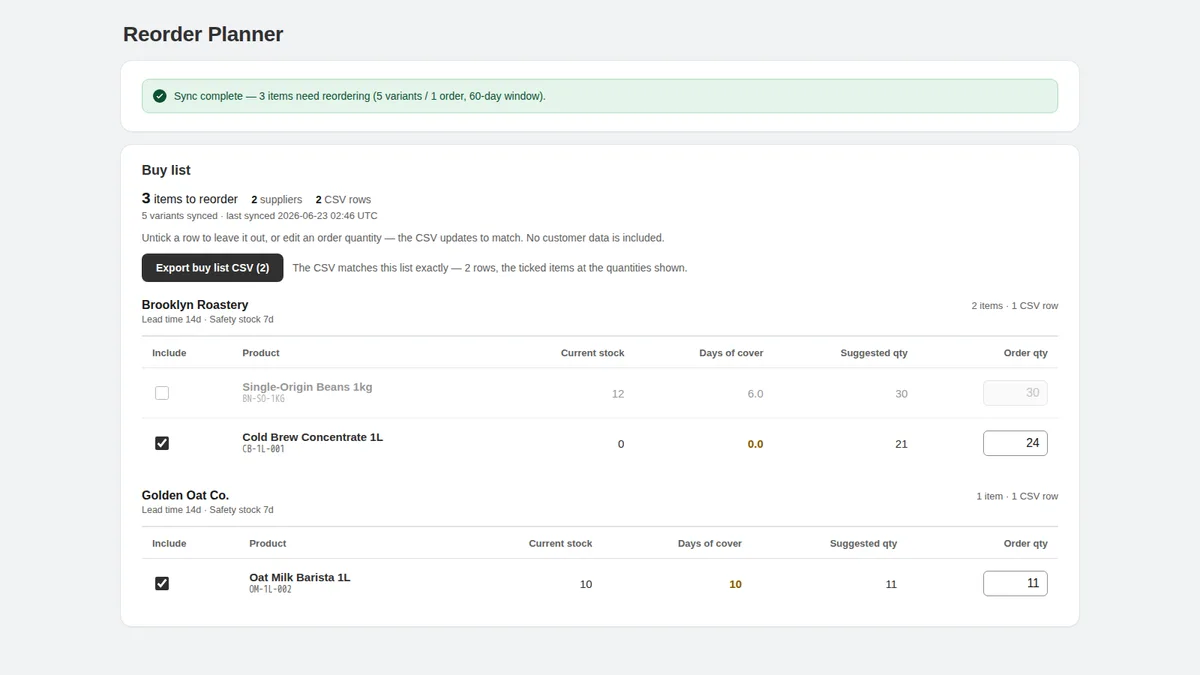
A weekly reorder list is a planning habit, not a Shopify feature, and this guide does not cover every workflow Stocky used to support. The list does not create Shopify purchase orders; those stay native to the Shopify admin, and the list only feeds the decision behind them. None of this is demand forecasting, and the reorder points and quantities you settle on are judgement calls a person reviews, not numbers to follow blindly. It does not promise that you avoid every stockout or clear every piece of dead stock. Supplier records and order history still need source-backed checks against your own store. For the weekly list itself, Kijun Reorder Planner is one option, scoped honestly: it builds supplier buy lists from recent sales and stock, groups reorder items by supplier, and lets you adjust quantities before exporting — you can save buy lists for later, and export CSV/PDF buy lists when the numbers look right. It is read-only by design: no inventory write-back, no native Shopify purchase order creation, and no use of customer names, emails, phone numbers, addresses, or payment data. Kijun Reorder Planner is available on the Shopify App Store. Try Kijun Reorder Planner.
This article was drafted with AI assistance and checked against cited sources through kijun’s editorial workflow. Last updated: 2026-07-03.
Stocky and Shopify are trademarks of Shopify Inc. kijun is not affiliated with or endorsed by Shopify.